
最終投稿日:2026年07月12日
https://adoptium.net/ja/temurin/releases 上記サイトより、ダウンロードします。
今回は現時点(2020年7月)で最新ではなく、安定板『JDK 17-LTS』を入れたいと思います。
※ LTS = Long Term Support 『OpenJDK17U-jdk_x64_windows_hotspot_17.0.19_10.msi』をダウンロードしました。
早速ダブルクリックからのインストールを実施します。 基本的に初期設定のまま、ポンポン『次へ』を押下していきます。
結果、以下ディレクトリにインストールされました。
C:\Program Files\Eclipse Adoptium\jdk-17.0.19.10-hotspot まずはPathを通しましょう。
Path %JAVA_HOME%\bin
途中『JAVA_HOME』をキーで作成するのがポイントです。
設定したら、当然Windowsの再起動ですね。
再起動したら、JAVAのバージョンを確認してみましょう。
C:\Users\hoge> java -version
openjdk version "17.0.19" 2026-04-21
OpenJDK Runtime Environment Temurin-17.0.19+10 (build 17.0.19+10)
OpenJDK 64-Bit Server VM Temurin-17.0.19+10 (build 17.0.19+10, mixed mode, sharing)
C:\Users\hoge>
IDEと言ったら『Eclipse』ですね!
以下サイトよりダウンロードします。
https://eclipseide.org/ エクリプスは、JAVAとの相性が繊細です。
最新のバージョンなんて入れたらまぁ起動しません。
なのでまずは『Other Releases』をクリックします。 ここでは『2024-09 R』を選びましょう。
次画面にて『Eclipse IDE for Enterprise Java and Web Developers』で、Windowsの「x86_64」をクリックします。
※ご自身の環境に合わせて下さい 以下をダウンロードしました。
eclipse-jee-2024-09-R-win32-x86_64.zip ZIPファイルなので、お好きな場所へ解凍しましょう。
解凍できたら『~\eclipse\eclipse.exe』を叩いて起動テストしてみます。
立ち上がりましたか?
立ち上がった方はおめでとうご御座います。
https://willbrains.jp/ 画面内の「Pleiades プラグイン・ダウンロード」から「Windows」を押下しましょう。
次画面で「https://ftp.jaist.ac.jp/pub/mergedoc/pleiades/build/stable/pleiades-win.zip」をクリックします。 以下がダウンロードされました。
pleiades-win.zip それでは日本語化の作業をするため、一旦エクリプスを閉じ以下の操作をします。
②「setup.exe」を叩く
③ 画面がPOPするので『選択』押下
④ Eclipseの起動ファイル(eclipse.exe)を指定します。
⑤『日本語化する』押下
⑥『終了』押下
⑦ エクリプスを起動する
https://www.wildfly.org/downloads/ スクロールして『28.0.1.Final』を探します。
『WildFly Distribution』の「Zip」をクリックします。
以下をダウンロードしました。
wildfly-28.0.1.Final.zip ZIPファイルを任意の場所に設置し解凍します。
ユーザー作成はBATコマンドからの『対話型』で進めていきます。
途中パスワードの入力で、以下警告がでた場合は、後々厄介な事になる可能性があるため、
[Ctrl]+[c]で強制終了させて最初からやり直しましょう。
WFLYDM0100: Password should have at least 1 alphanumeric character.
Are you sure you want to use the password entered yes/no?
『8文字以上』『英数混在』『記号付き』を心がけましょう。
Password recommendations are listed below. To modify these restrictions edit the add-user.properties configuration file.
- The password should be different from the username
- The password should not be one of the following restricted values {root, admin, administrator}
- The password should contain at least 8 characters, 1 alphabetic character(s), 1 digit(s), 1 non-alphanumeric symbol(s)
パスワードにユーザー名が含まれてるとこうなります。 以下が対話型の全体的な流れとなります。
What type of user do you wish to add?
a) Management User (mgmt-users.properties)
b) Application User (application-users.properties)
(a): a ※管理ユーザーを作るよ
Enter the details of the new user to add.
Using realm 'ManagementRealm' as discovered from the existing property files.
Username : admin ※名前は「admin」にするよ
User 'admin' already exists and is disabled, would you like to...
a) Update the existing user password and roles
b) Enable the existing user
c) Type a new username
(a): a ※パスワード決めるるよ
Password recommendations are listed below. To modify these restrictions edit the add-user.properties configuration file.
- The password should be different from the username
- The password should not be one of the following restricted values {root, admin, administrator}
- The password should contain at least 8 characters, 1 alphabetic character(s), 1 digit(s), 1 non-alphanumeric symbol(s)
Password : ※パスワード入力
Re-enter Password : ※パスワード再入力
What groups do you want this user to belong to? (Please enter a comma separated list, or leave blank for none)[ ]:
※そのままリターン
Updated user 'admin' to file 'C:\~\wildfly-28.0.1.Final\standalone\configuration\mgmt-users.properties'
Updated user 'admin' to file 'C:\~\wildfly-28.0.1.Final\domain\configuration\mgmt-users.properties'
Updated user 'admin' with groups to file 'C:\~\wildfly-28.0.1.Final\standalone\configuration\mgmt-groups.properties'
Updated user 'admin' with groups to file 'C:\~\wildfly-28.0.1.Final\domain\configuration\mgmt-groups.properties'
続行するには何かキーを押してください . . .
ターミナルが立ち上がり、何やら何かが起動してる感じです。
Calling "C:\MyProject\reidream\git\JAVA\jakaruta\wildfly-28.0.1.Final\bin\standalone.conf.bat"
Setting JAVA property to "C:\Program Files\Eclipse Adoptium\jdk-17.0.19.10-hotspot\bin\java"
~ 省略 ~
12:07:12,876 INFO [org.jboss.as] (Controller Boot Thread) WFLYSRV0025: WildFly Full 28.0.1.Final (WildFly Core 20.0.2.Final) started in 6681ms - Started 399 of 619 services (321 services are lazy, passive or on-demand) - Server configuration file in use: standalone.xml
http://localhost:9990 ベーシック認証がPOPするので、先ほど設定した内容でログインします。
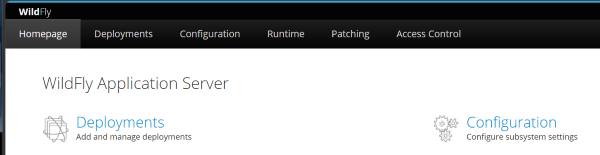
入れた方はおめでとうございます。
取り合えずは起動確認だったので、[Ctrl]+[c]で落としましょう。